Basic Usage of Linux
This page explains how to launch the terminal and how to use the command line on Ubuntu Linux 16.04 with the standard Unity desktop environment.
Launching the Terminal
Click “Search your computer”  in the launcher displayed at the left edge of the home screen.
A search box and a list of applications appear. Type “term” or “terminal” into the search box.
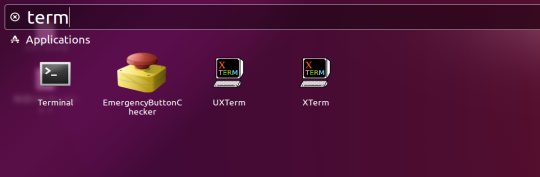
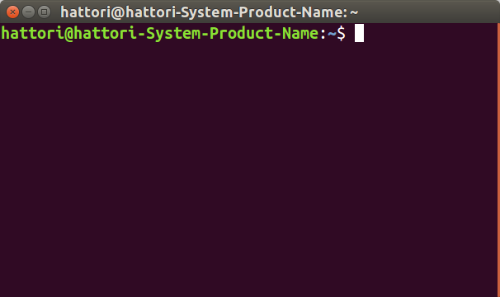
“Terminal” appears as a result of the search. Click “Terminal” to launch it.
Basic Commands and How to Launch Choreonoid
This section describes the minimum set of commands used in this manual, along with how to launch Choreonoid.
Command |
Description |
|---|---|
cd |
“cd” stands for “change directory” and is the command for changing the current working directory.
cd <directory> moves to the specified directory. <directory> can be either a relative or an absolute path.
The following symbols can be used as <directory>, each with the meaning shown below:
/ … root directory
. … current directory
.. … parent directory
~/ … home directory
(no directory specified) … home directory
|
ls |
“ls” stands for “list” and is the command for displaying information about files and directories.
ls [options] displays file and directory information. The options are optional.
For example, typing “ls -l” on the command line also displays detailed file information such as file size.
|
pwd |
“pwd” stands for “print working directory” and is the command for checking the location of the current directory. |
mkdir |
“mkdir” stands for “make directory” and is the command for creating a directory.
mkdir [options] <directory to create> creates a directory.
|
cp |
“cp” stands for “copy” and is the command for copying files and directories.
cp [options] <source file/directory> <destination file/directory> copies files and directories.
Note that to copy a directory, you must specify the “-r” option.
|
mv |
“mv” stands for “move” and is the command for moving files and directories or for renaming them.
mv [options] <old file/directory> <new file/directory> moves files and directories or renames them.
To rename a file, type “mv file1 file2” on the command line to change the file name from “file1” to “file2”.
To move a file, typing “mv file2 ~/test” moves “file2” into the “test” directory directly under the home directory.
|
rm |
“rm” stands for “remove” and is the command for deleting files and directories.
rm [options] <file/directory> deletes the specified file or directory.
Note that to delete a directory, you must specify the “-r” option.
Wildcards can also be used for the files and directories to delete. Typing “rm *.txt” on the command line deletes all files with the extension “.txt” in the current directory.
|
gedit |
“gedit” is the command that launches the standard text editor.
gedit can highlight syntax for several programming languages.
For example, this manual uses YAML and C++. Highlighting is off by default and the source can be hard to read, so select “View” - “Highlight Mode” from the gedit menu and choose YAML or C++ to enable highlighting.
|
choreonoid |
“choreonoid” is the command used to launch Choreonoid.
bin/choreonoid [project name (extension: .cnoid)] launches Choreonoid. Specifying a project name is optional.
As a prerequisite, you must first use the cd command to move to the “Choreonoid” directory before launching Choreonoid.
For example, if a “Choreonoid” directory exists directly under your home directory, typing cd ~/Choreonoid moves you into the “Choreonoid” directory.
Once you are in the “Choreonoid” directory, typing “bin/choreonoid” on the command line launches Choreonoid.
To launch Choreonoid with a specific project, type “bin/choreonoid share/project/SR1Liftup.cnoid” on the command line to start the target project.
Here we are launching the sample project named SR1Liftup.
|
Using the File Manager
This section explains how to copy files using the file manager and how to open files with the text editor.
- Click “Files”
 in the launcher at the left edge of the home screen to start the file manager.
 - To navigate between directories, click the directory mark
 to move to the target directory.
 - To copy a file or directory, select the file or directory you want to copy and right-click to display a menu, then select “Copy”. Alternatively, you can copy by selecting the file or directory and pressing “Ctrl+C”.
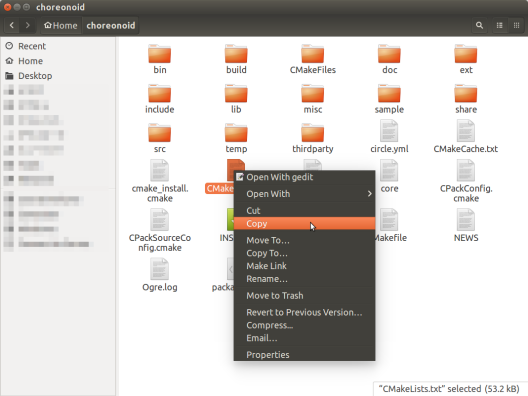
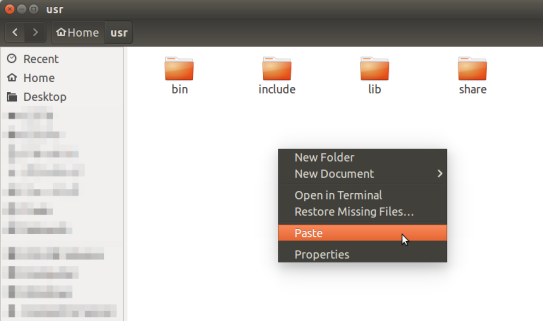
- To paste the copied file or directory, move to the directory where you want to paste it and right-click to display a menu, then select “Paste”. Alternatively, after moving to the destination directory, you can paste by pressing “Ctrl+V”.
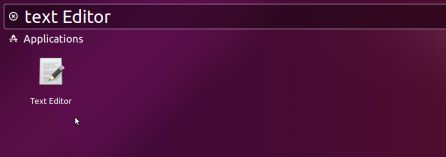
- To launch gedit, the standard text editor, type “Text Editor” in “Search your computer” and click the Text Editor that appears.
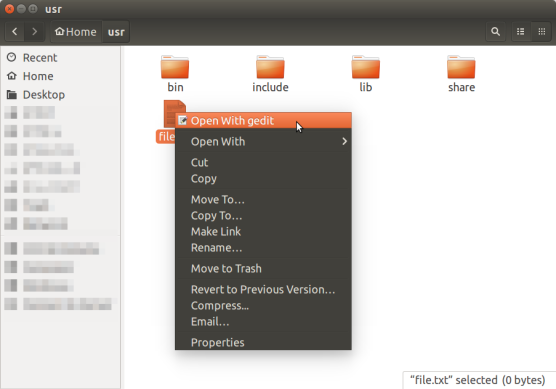
- To open a file in gedit, right-click the file you want to open and select “Open With gedit”.
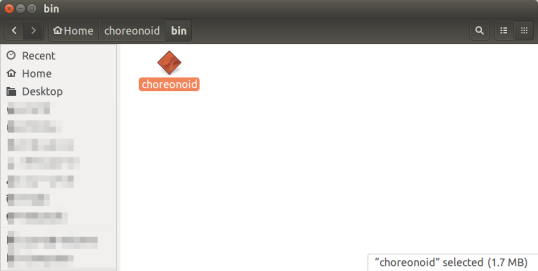
- To launch Choreonoid, double-click “choreonoid” located directly under the choreonoid/bin/ directory.